Helpful Notebook Tips
Introduction to Jupyter Notebook
A Jupyter Notebook is a web-based interactive computing environment that supports programming in Python, R, and other languages (Stokes and Harding 2025). In this project, you will use Jupyter Notebooks to write code, explore data, and document your analysis.
Overview of a Jupyter Notebook
Jupyter notebooks allow users to create and share documents that combine code, equations, visualizations, and formatted text (Stokes and Harding 2025). They are commonly used for data science because users can write and run code step by step, document their thinking, and view results directly alongside the code that produced them.
Avoid opening multiple notebooks in separate tabs, as this can lead to memory overload, forcing you to restart your session.
Code & Text Cells
A Jupyter Notebook has three types of cells. For this project, you will use only two:
- Code cells for writing and running Python code
- Markdown or text cells for entering written responses.
Running Cells in a Jupyter Notebook
In a Jupyter Notebook, you run cells one at a time to see code output or display formatted text. To run a cell, click inside the cell and then click the Run button in the toolbar at the top of the notebook.

You can also use keyboard shortcuts:
- PCs and Chromebooks: Hold Ctrl and press Enter
- Macs: Hold Command (⌘) and press Enter
Adding Cells
Use the + button in the top toolbar to add a new cell.

Then set the cell type as needed:
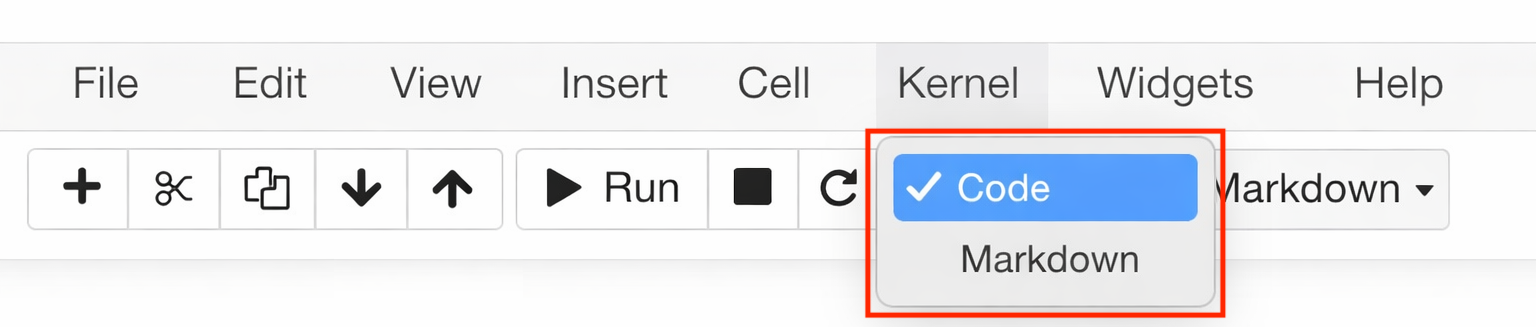
- Choose Code for code
- Choose Markdown for text
Running All Cells from Top Down
The Save button saves your code and text, but it does not save data stored in memory. Whenever you reopen a notebook, you should re-run all code cells from the top.
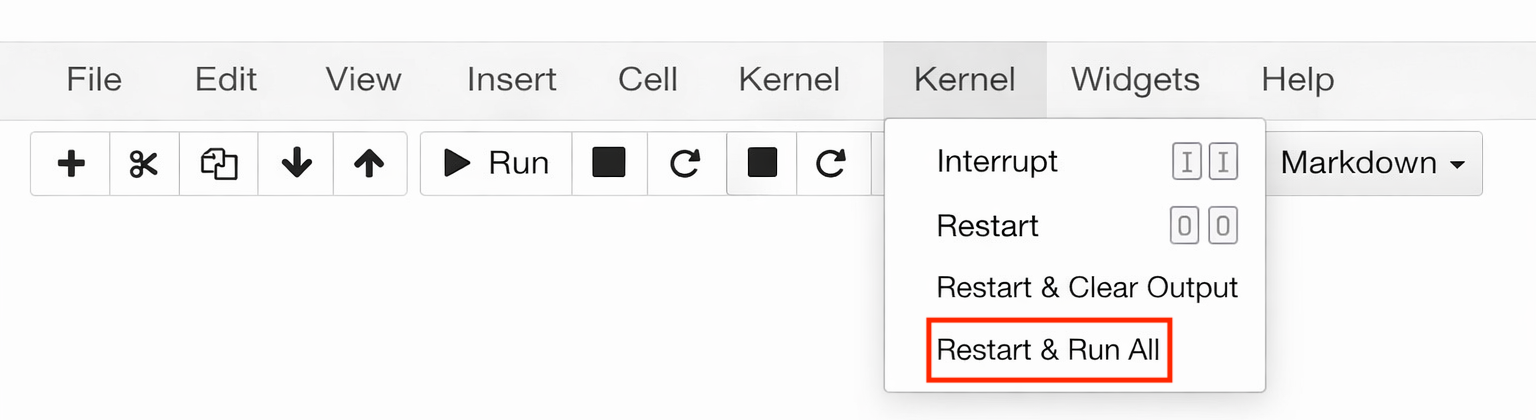
To do this, go to Kernel → Restart & Run All.
This option restarts the notebook and runs every cell in order from top to bottom. If a code cell encounters an error, execution will stop and later cells will not run.